


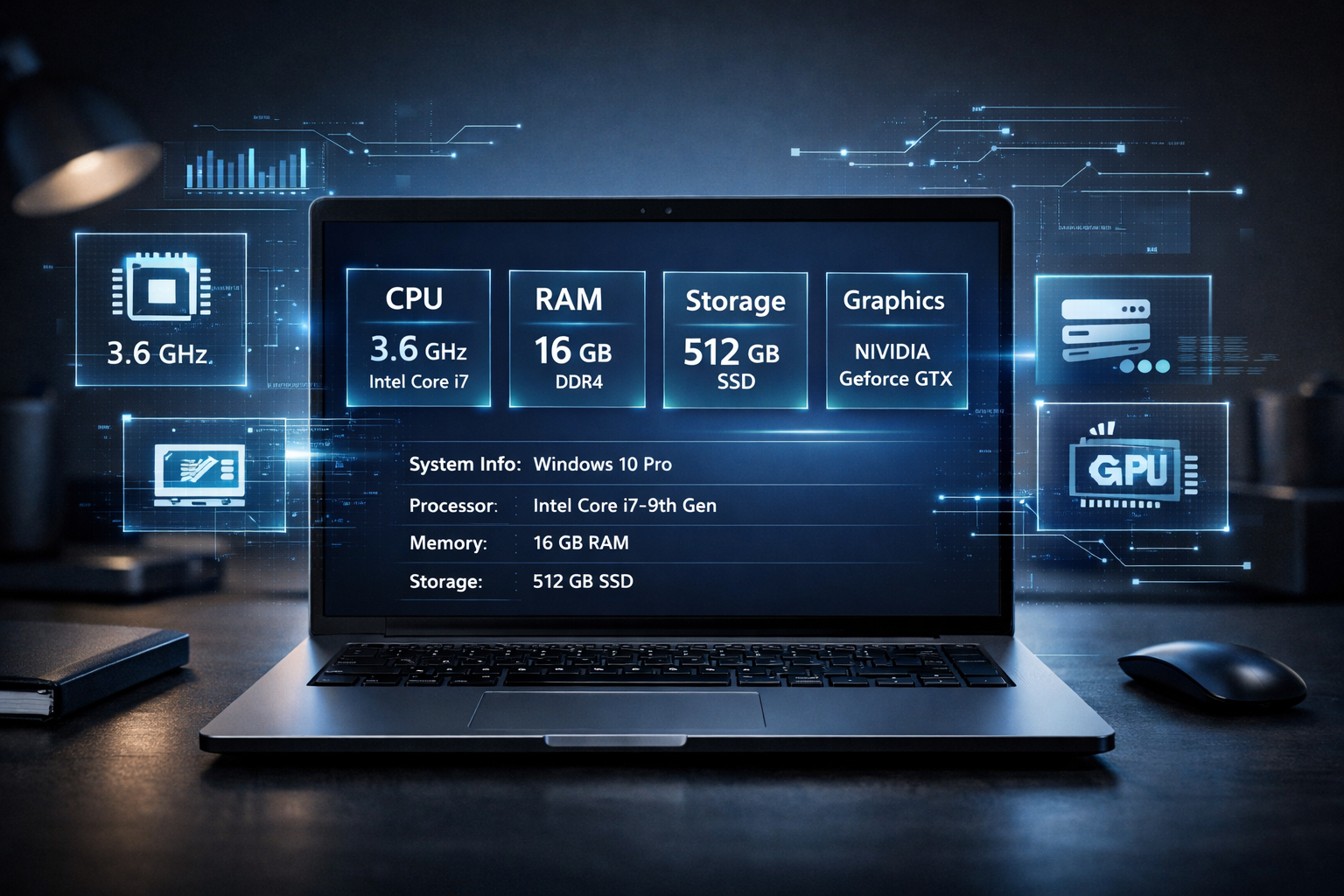

How to Check Your PC Specs: Unlock the Secrets Hidden Inside Your Machine
Your PC may look quiet on the outside, but beneath that familiar desktop lies a powerful engine of components working relentlessly every second. Whether you’re planning to upgrade your system, install a demanding game, troubleshoot performance issues, or simply satisfy your curiosity, knowing your PC’s specifications is the first step to understanding what your machine is truly capable of.
The good news? You don’t need to be a tech wizard to uncover this information. Windows hides a detailed blueprint of your system right under your fingertips. Here’s how to reveal it—step by step—and why it matters more than you might think.
Why Checking Your PC Specs Matters More Than Ever
In today’s digital world, software is more demanding than ever. Games push graphics cards to their limits, creative apps devour memory, and operating systems evolve rapidly. If your PC feels sluggish or refuses to run certain programs, your system specs often hold the answer.
Checking your PC specs can help you:
- Confirm whether your system meets minimum software or game requirements
- Identify bottlenecks slowing down performance
- Decide which parts can be upgraded—and which can’t
- Diagnose hardware-related issues
- Avoid wasting money on incompatible upgrades
In short, your PC specs tell the story of what your computer can—and cannot—do.
Method 1: The Quick Glance – Using Windows Settings
If you want a fast overview, Windows Settings is your easiest entry point.
- Click the Start menu
- Open Settings
- Navigate to System
- Select About
Here, Windows presents a clean summary of your PC’s core components. You’ll see:
- Processor (CPU)
- Installed RAM
- System type (32-bit or 64-bit)
- Windows version
This method is ideal for everyday users who just need the basics. However, it only scratches the surface.
Method 2: System Information – The Full Blueprint
For a deeper dive, Windows’ built-in System Information tool offers an extensive breakdown.
- Press Windows + R
- Type msinfo32
- Press Enter
A detailed window opens, revealing everything from BIOS version to motherboard model. Key sections include:
- System Summary – CPU, RAM, system model, and OS details
- Components – Graphics card, storage drives, sound devices
- Software Environment – Drivers and running services
This tool is a goldmine for anyone planning upgrades or diagnosing compatibility issues.
Method 3: DirectX Diagnostic Tool – Graphics and Sound Revealed
Gamers and creatives should pay special attention to the DirectX Diagnostic Tool, often referred to as DxDiag.
- Press Windows + R
- Type dxdiag
- Hit Enter
Once loaded, you’ll see tabs dedicated to:
- System details
- Display (graphics card and VRAM)
- Sound devices
- Input devices
If a game crashes or a graphics-intensive program struggles, this tool often reveals the culprit.
Method 4: Task Manager – Live Performance in Real Time
Sometimes, knowing what’s happening right now matters more than knowing what’s installed.
- Press Ctrl + Shift + Esc
- Click the Performance tab
Here, Windows displays live data for:
- CPU usage and model
- Memory usage and speed
- Disk type (HDD or SSD)
- GPU performance
This view is invaluable when diagnosing slowdowns or checking whether your PC is being pushed to its limits.
Method 5: Command Prompt and PowerShell – Power for Advanced Users
For those who prefer precision, Windows’ command-line tools offer fast access to specs.
Open Command Prompt and type:
systeminfo
Within seconds, your PC lists detailed information including processor, RAM, and system manufacturer.
PowerShell can go even deeper, allowing advanced users to extract highly specific hardware data—perfect for technicians and power users.
What Each Key Spec Actually Means
Understanding your specs is just as important as finding them.
- CPU (Processor): The brain of your PC RAM: Short-term memory. More RAM allows smoother multitasking.
- GPU (Graphics Card): Responsible for visuals, gaming, and video editing.
- Storage: SSDs offer faster performance than traditional hard drives.
- Operating System: Determines software compatibility and security features.
Knowing how these components work together helps you make smarter decisions.
When You Should Check Your PC Specs
You should check your specs if:
- A game or app refuses to install
- Your PC suddenly feels slow
- You’re planning an upgrade
- You’re selling or buying a used computer
- You’re troubleshooting crashes or errors
In each case, your system specs provide clarity in a sea of guesswork.
Final Thoughts: Knowledge Is Power
Your PC is more than just a screen and keyboard—it’s a carefully balanced machine. Checking your PC specs empowers you to understand, maintain, and improve it. With just a few clicks or commands, you can uncover the full story of what’s inside your system.
Whether you’re a casual user or a performance enthusiast, knowing your PC specs transforms confusion into confidence. And once you know what your machine is made of, you’re one step closer to getting the best out of it.
