



How to Defragment Your Hard Drive and Boost Your Computer’s Performance
Over time, even the most reliable computer can begin to feel tired. Programs take longer to open. Files hesitate before responding. What once felt fast now feels stubbornly slow. While many users blame age or outdated hardware, the real problem is often hidden deep inside the hard drive itself—fragmentation.
Defragmenting a hard drive is one of the simplest yet most overlooked ways to restore performance, especially on older systems using traditional hard disk drives (HDDs). It’s not flashy. It doesn’t require new parts. But when done correctly, it can quietly breathe new life into your computer.
What Is Hard Drive Fragmentation—and Why It Matters
A traditional hard drive stores data in small blocks scattered across spinning disks. When your computer saves or edits files, it doesn’t always place the data neatly in one location. Over time, files are split into pieces and spread across the drive. This is called fragmentation.
When fragmentation builds up, your computer has to work harder to find and reassemble those pieces every time you open a file or run a program. The result is slower performance, longer load times, and unnecessary strain on your system.
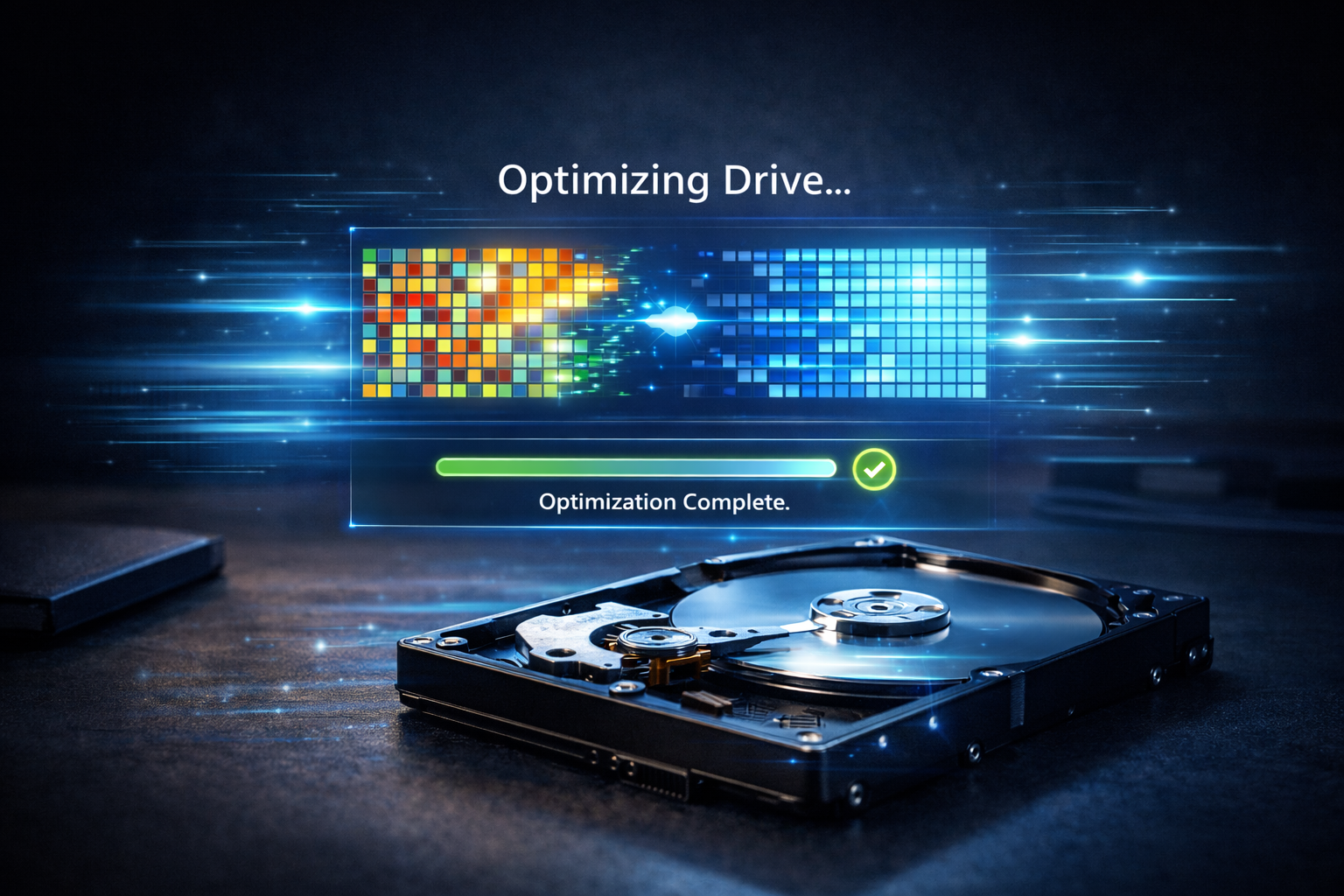
Defragmentation reorganises these scattered fragments, placing related data back together. The drive reads files more efficiently, and your system responds faster.
Should You Defrag Your Computer?
Before diving in, it’s important to know whether defragmentation is right for your system.
- Traditional HDD: Defragmentation is beneficial and recommended.
- Solid-State Drive (SSD): Do not defrag. SSDs use different technology and don’t suffer from fragmentation in the same way.
Knowing what type of drive you have is the first step toward doing this safely.
How to Check Your Drive Type
- Open the Start menu
- Search for Defragment and Optimise Drives
- Look under Media type
If it says Hard disk drive, you’re good to proceed. If it says Solid-state drive, stop there—Windows already optimises SSDs automatically.
- How to Optimise and Defrag a Windows Hard Drive
Windows includes a built-in tool designed specifically for this task. It’s reliable, safe, and easy to use.
Step 1: Open the Defragment Tool
- Press Start
- Search for Defragment and Optimise Drives
- Open the tool
Step 2: Select Your Hard Drive
You’ll see a list of drives. Select the HDD you want to optimise.
Step 3: Analyse the Drive
Click Analyse to see how fragmented the drive is. This step shows whether defragmentation is necessary.
Step 4: Start Defragmentation
Click Optimise. Windows will begin reorganising the data on your hard drive.
The process may take several minutes or longer, depending on drive size and fragmentation level. During this time, it’s best to avoid heavy tasks.
What Happens During Defragmentation
Defragmentation isn’t just moving files around randomly. The system carefully reorganises data to minimise future fragmentation and improve read speeds.
You may not see dramatic changes instantly, but common improvements include:
- Faster boot times
- Quicker file access
- Smoother overall system performance
- Reduced strain on the hard drive
Think of it as cleaning out cluttered storage shelves so everything is easier to find.
How Often Should You Defrag?
For most users with traditional hard drives:
- Once every one to two months is enough
- Heavy users may benefit from monthly optimisation
Windows often schedules defragmentation automatically, but it’s worth checking to ensure it’s enabled—especially on older systems.
Enable Automatic Defragmentation
- Open Defragment and Optimise Drives
- Click Change settings
- Turn on Scheduled optimisation
- Choose a frequency that fits your usage
This ensures your hard drive stays organised without requiring constant attention.
Common Mistakes to Avoid
Defragmentation is safe, but mistakes can reduce its benefits:
- Defragging SSDs: Unnecessary and potentially harmful
- Interrupting the process: Let it finish for best results
- Using unreliable third-party tools: Windows’ built-in tool is more than sufficient
- Expecting miracles: Defrag improves efficiency, not outdated hardware
Understanding its limits helps manage expectations.
Defragmentation vs Other Performance Fixes
Defragging works best as part of a broader maintenance routine. Combine it with:
- Removing unused programs
- Clearing temporary files
- Keeping software updated
- Adding more RAM if needed
Together, these steps create a noticeable improvement in system responsiveness.
Signs Your Hard Drive Needs Defragmenting
You may benefit from defragmentation if:
- Files take longer to open
- Programs feel sluggish
- The system boots slowly
- Disk activity stays high for no clear reason
These symptoms often point to scattered data slowing everything down.
· Conclusion: Modest Effort, Meaningful Improvement
· Defragmenting a hard drive isn’t glamorous, but it’s powerful. It restores order where chaos has quietly built up, allowing your computer to operate the way it was meant to—smoothly, efficiently, and reliably.
For systems still running on traditional hard drives, defragmentation remains one of the easiest ways to reclaim lost speed without spending money or installing new hardware.
Sometimes, the difference between frustration and flow isn’t a new computer—it’s simply putting the pieces back where they belong.
