


How to Use Google Authenticator Transfer
In today’s digital world, online security is more important than ever. Many websites and applications use two-factor authentication (2FA) to provide an extra layer of protection beyond passwords. One of the most popular tools for this purpose is Google Authenticator.
The app generates time-based verification codes that help secure accounts from unauthorized access. However, when users switch to a new smartphone, one common concern is how to use Google Authenticator transfer without losing access to important accounts. Understanding the transfer process can save time, reduce stress, and ensure continuous access to online services.
Understanding Google Authenticator and Why Transfers Matter
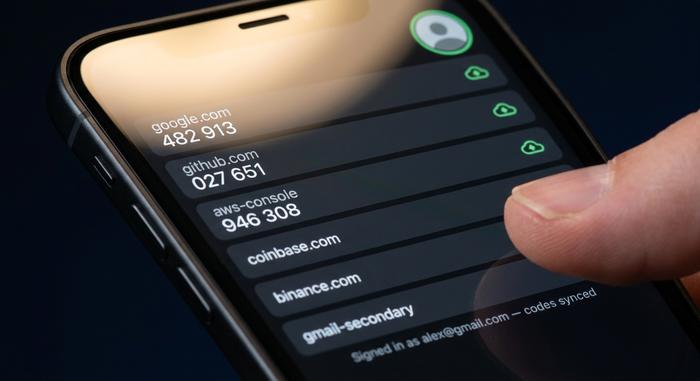
Google Authenticator is a mobile application that generates six-digit security codes used during login. These codes refresh every few seconds and are linked to accounts that have two-factor authentication enabled. Since the app stores authentication data directly on the device, moving to a new phone requires transferring those accounts properly.
Without completing the transfer process, users may find themselves unable to access important accounts, including email, banking platforms, social media profiles, and work-related services. This makes learning how to use Google Authenticator transfer an essential skill for anyone upgrading their smartphone or replacing a damaged device.
Google Authenticator Preparing for the Transfer Process
Before transferring Google Authenticator to a new phone, it is important to ensure that both the old and new devices are available. Having access to the original phone makes the process significantly easier because Google Authenticator includes a built-in transfer feature.
Users should also make sure that the new device has the latest version of Google Authenticator installed. It can be downloaded from the appropriate app store for Android or iPhone devices. Additionally, keeping backup codes for important accounts is highly recommended. Many online services provide backup recovery codes when two-factor authentication is first enabled.
Taking these precautions helps minimize the risk of being locked out of accounts during the transition.
How to Export Accounts from the Old Device
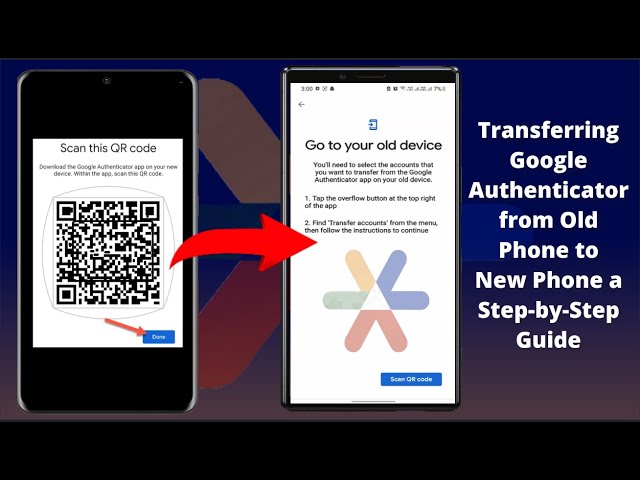
The first step in learning how to use Google Authenticator transfer is exporting accounts from the old phone. Open the Google Authenticator app and tap the menu icon, usually represented by three dots in the upper corner of the screen.
From the menu, select “Transfer Accounts” and then choose “Export Accounts.” The application may ask for device authentication, such as a PIN, fingerprint, or face recognition. Once verified, users can select the accounts they want to transfer.
After selecting the desired accounts, the app generates a QR code. This QR code contains the encrypted information necessary to move the authentication settings to another device. Keep the screen active and ready for scanning.
Importing Accounts to the New Phone
With the QR code displayed on the old phone, open Google Authenticator on the new device. During the setup process, select “Transfer Accounts” and then choose “Import Accounts.”
The app will activate the camera and prompt users to scan the QR code shown on the old device. Once scanned successfully, the selected accounts will automatically appear in Google Authenticator on the new phone.
At this stage, both devices may temporarily display the same authentication codes. This is normal and allows users to verify that the transfer was completed successfully before removing access from the old device.
Verifying That the Transfer Worked
One of the most important steps in the transfer process is verifying that all accounts function correctly. Open a few online services that use Google Authenticator and attempt to log in using codes generated on the new phone.
If the codes are accepted and authentication works normally, the transfer was successful. It is wise to test multiple accounts because some services may have unique security requirements.
Avoid deleting the accounts from the old device until every transferred account has been verified. This extra precaution can prevent unnecessary complications if a problem occurs during setup.
What to Do If the Old Phone Is Lost or Damaged
Sometimes users need to transfer Google Authenticator but no longer have access to the original device. This situation can be more challenging but is still manageable in many cases.
Most online services provide alternative recovery options, including backup codes, recovery emails, text message verification, or customer support assistance. Users should visit the security settings of each affected account and follow the recovery procedures provided by the service.
If backup codes were saved during the initial setup of two-factor authentication, they can be extremely valuable in restoring account access. Once access is regained, Google Authenticator can be configured again on the new device.
Common Problems During Google Authenticator Transfer
Although the transfer process is generally straightforward, users may occasionally encounter issues. QR codes may fail to scan if the camera lens is dirty or if the screen brightness is too low. Adjusting the display brightness and ensuring a clear camera view often resolves the problem.
Another common issue occurs when device time settings are incorrect. Google Authenticator relies on accurate time synchronization to generate valid security codes. Enabling automatic date and time settings can help eliminate authentication errors.
Users should also ensure they are using the most recent version of the Google Authenticator app, as updates often include bug fixes and security improvements.
Security Tips After Completing the Transfer
Once the transfer is finished, it is important to maintain strong security practices. Consider enabling device locks such as fingerprints, facial recognition, or secure PIN codes to protect access to Google Authenticator.
Backup codes should be stored in a secure location, preferably offline or in a password manager. Users should also review account security settings periodically and update recovery information whenever necessary.
Removing Google Authenticator data from the old device after successful verification helps prevent unauthorized access if the device is sold, recycled, or given away.
Conclusion
Learning how to use Google Authenticator transfer is essential for anyone upgrading to a new smartphone while maintaining secure access to online accounts. The built-in transfer feature makes the process relatively simple when both devices are available. By exporting accounts from the old phone, importing them to the new device, and verifying functionality, users can move their authentication settings safely and efficiently. Taking additional precautions such as saving backup codes and testing account access ensures a smooth transition while preserving the security benefits of two-factor authentication.
