


How to Fix Phone Screen Unresponsive Touch
Smartphones have become an essential part of daily life, helping people communicate, work, shop, and stay entertained. When a phone’s touchscreen suddenly stops responding, it can be frustrating and disruptive. An unresponsive touch screen can occur for several reasons, ranging from temporary software glitches to serious hardware damage.
Fortunately, many touchscreen issues can be fixed without immediately replacing the device. Understanding the causes and solutions can help users restore normal functionality and avoid unnecessary repair costs.
Common Reasons Why a Phone Screen Becomes Unresponsive
A touchscreen may stop responding due to several factors. Software bugs are among the most common causes, especially after a system update or the installation of a new application. Sometimes background processes consume excessive system resources, causing the screen to freeze temporarily.
Physical damage is another major factor. If a phone has been dropped or exposed to water, internal components responsible for touch sensitivity may be affected. Dirt, oil, or moisture on the screen can also interfere with touch recognition. Additionally, low storage space, outdated software, or a faulty screen protector can contribute to touchscreen problems.
Identifying the root cause is the first step toward finding the right solution and preventing future issues.
Restart the Phone to Clear Temporary Glitches
One of the simplest and most effective solutions is restarting the device. Temporary software conflicts can cause the touchscreen to become unresponsive, and a restart often clears these issues.
To restart the phone, press and hold the power button until the power menu appears. Select the restart option if available. If the touchscreen is completely frozen, perform a force restart by holding the power button and volume button simultaneously for several seconds. The exact button combination may vary depending on the device model.
After the phone reboots, check whether the touchscreen responds normally. In many cases, this simple step resolves minor software-related problems.
Fix Phone Screen Clean the Screen Thoroughly
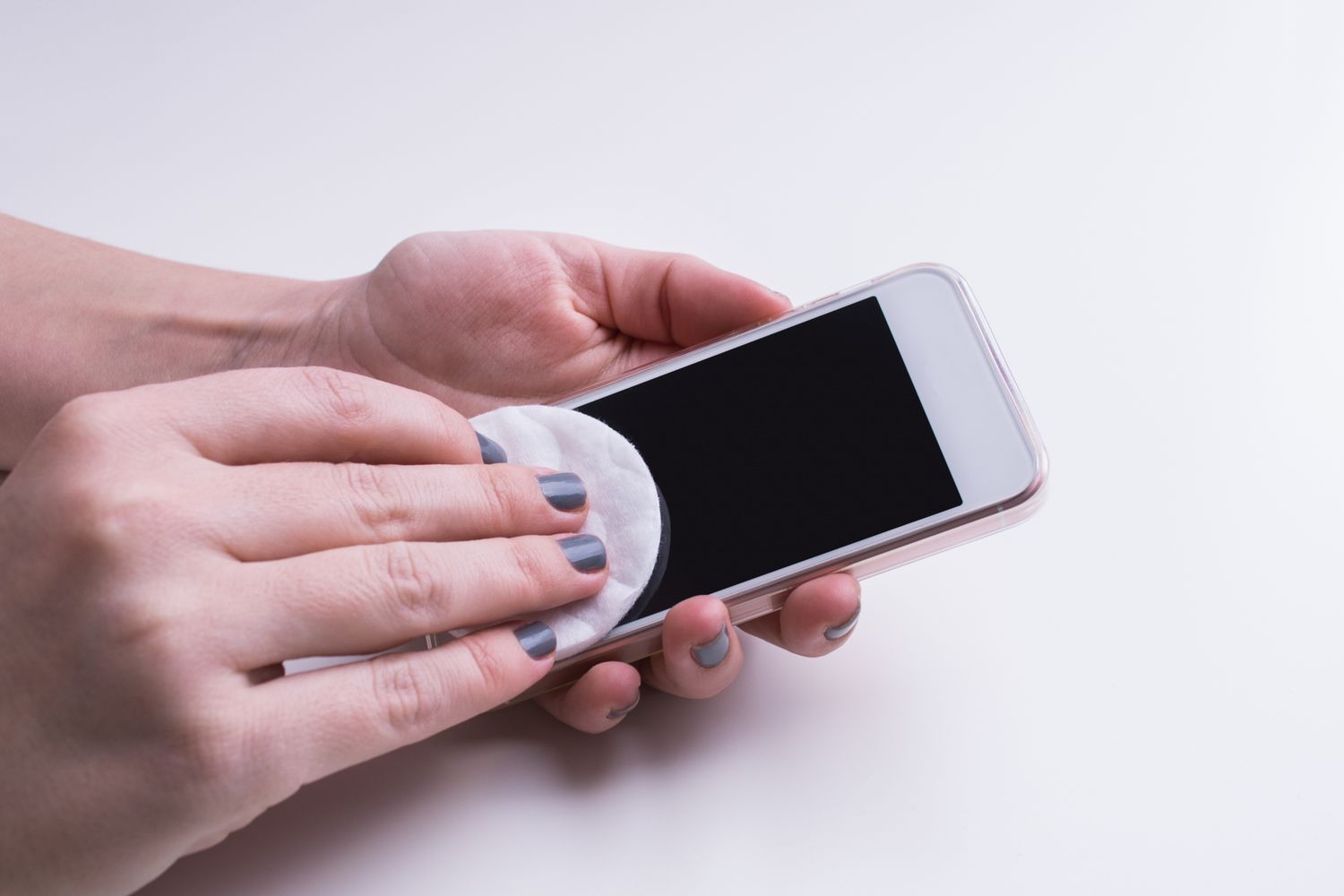
A dirty screen can interfere with touch sensitivity. Dust particles, fingerprints, grease, and moisture may prevent the touchscreen from accurately detecting finger movements.
Use a soft microfiber cloth to gently wipe the screen. Avoid using harsh chemicals or abrasive materials that could damage the display. If necessary, slightly dampen the cloth with a screen-safe cleaning solution. Make sure the phone is completely dry before testing the touchscreen again.
If you frequently use your phone in dusty environments or while exercising, regular cleaning can help maintain optimal touchscreen performance.
Remove the Screen Protector or Phone Case
Sometimes the problem is not the screen itself but an accessory attached to the device. Poor-quality screen protectors can reduce touch sensitivity, especially if they are thick, damaged, or improperly installed.
Remove the screen protector and test the display directly. Similarly, a bulky phone case may press against the edges of the screen and affect touch functionality. Removing these accessories can help determine whether they are causing the issue.
If the touchscreen begins working normally after removal, consider replacing the accessory with a higher-quality alternative.
Fix Phone Screen Check for Software Updates
Outdated operating systems often contain bugs that may affect touchscreen performance. Smartphone manufacturers regularly release updates to fix known issues and improve device stability.
Navigate to the settings menu and check for available software updates. Install any pending updates and restart the phone afterward. Updated software can resolve compatibility issues, improve responsiveness, and enhance overall device performance.
Keeping the operating system current is one of the best ways to prevent touchscreen problems from recurring.
Fix Phone Screen Free Up Storage Space
A phone with extremely low storage space may struggle to perform basic tasks efficiently. When storage is nearly full, apps can crash, system processes may slow down, and touchscreen responsiveness can suffer.
Delete unnecessary files, old photos, videos, and unused applications. Consider moving important files to cloud storage or an external device. After freeing up space, restart the phone and check if the touchscreen performance improves.
Maintaining adequate free storage helps ensure smooth operation and reduces the risk of system-related issues.
Start the Phone in Safe Mode
Third-party applications can occasionally interfere with normal touchscreen functionality. Safe Mode temporarily disables downloaded apps and allows the phone to run using only essential system software.
If the touchscreen works correctly in Safe Mode, a recently installed application may be causing the problem. Uninstall suspicious or newly added apps one at a time until the issue is resolved.
This method is particularly useful when touchscreen problems begin shortly after installing a specific application.
Calibrate the Touchscreen
Some Android devices offer touchscreen calibration options through built-in settings or specialized diagnostic tools. Calibration helps the device accurately interpret touch inputs and may improve responsiveness.
Follow the calibration instructions provided by the manufacturer if available. While modern smartphones typically calibrate automatically, manual calibration can sometimes correct unusual touch behavior.
Be cautious when downloading calibration apps from unknown sources, as they may introduce additional problems.
Check for Physical or Water Damage
If the phone was recently dropped, exposed to moisture, or subjected to extreme temperatures, hardware damage may be responsible for the touchscreen failure. Look for visible cracks, discoloration, screen flickering, or unusual display behavior.
Water damage can be particularly harmful because corrosion may develop inside the device over time. If physical damage is suspected, professional inspection is often necessary.
Avoid attempting complex repairs without proper experience, as this may worsen the problem or void the device warranty.
Perform a Factory Reset as a Last Resort
If all other troubleshooting methods fail, a factory reset may resolve deep software issues affecting the touchscreen. Before proceeding, back up all important data because this process erases everything stored on the device.
Navigate to the reset options in the settings menu and follow the instructions carefully. Once the reset is complete, test the touchscreen before reinstalling apps.
A factory reset can eliminate software conflicts and restore the phone to its original condition, making it an effective final troubleshooting step.
Conclusion
An unresponsive phone touchscreen can result from software glitches, dirty surfaces, storage limitations, faulty accessories, or hardware damage. Fortunately, many issues can be fixed through simple troubleshooting methods such as restarting the device, cleaning the screen, updating software, or removing problematic accessories. More advanced solutions like Safe Mode testing, calibration, and factory resets may be necessary for persistent problems. By following these steps systematically, users can often restore touchscreen functionality and extend the life of their smartphones without expensive repairs.
